When you collect links for work or save pages to read later, you sometimes want to revisit something you found on your PC from your smartphone. The opposite happens too: you find a useful page on your phone and want to open it later on a larger computer screen.
The problem is that mobile bookmarks can be surprisingly inconvenient to save, organize, and find again—whether you use Chrome or Safari. If you switch between multiple browsers, it gets even harder.
Why Chrome and Safari Bookmarks Stay Separate
Chrome and Safari are separate browsers made by different companies. They use different accounts and syncing systems, so a bookmark saved in one browser is not automatically shared with the other by default.
For example, a favorite saved in Chrome on your PC is not immediately available in Safari on your iPhone. Likewise, a link bookmarked in mobile Safari does not simply appear in Chrome on your desktop. When you use several browsers across your computer and smartphone, useful links can quickly become scattered.
Manage Links Across Devices in One Place with Urlala
Instead of maintaining separate bookmark collections in every browser, you can keep them together with Urlala, a free link manager.
Urlala is available on the web, as a Chrome extension, and as an Android app. Sign in with the same account to sync your saved links and folders between your computer and phone.
You need to sign in to access the same data on multiple devices.
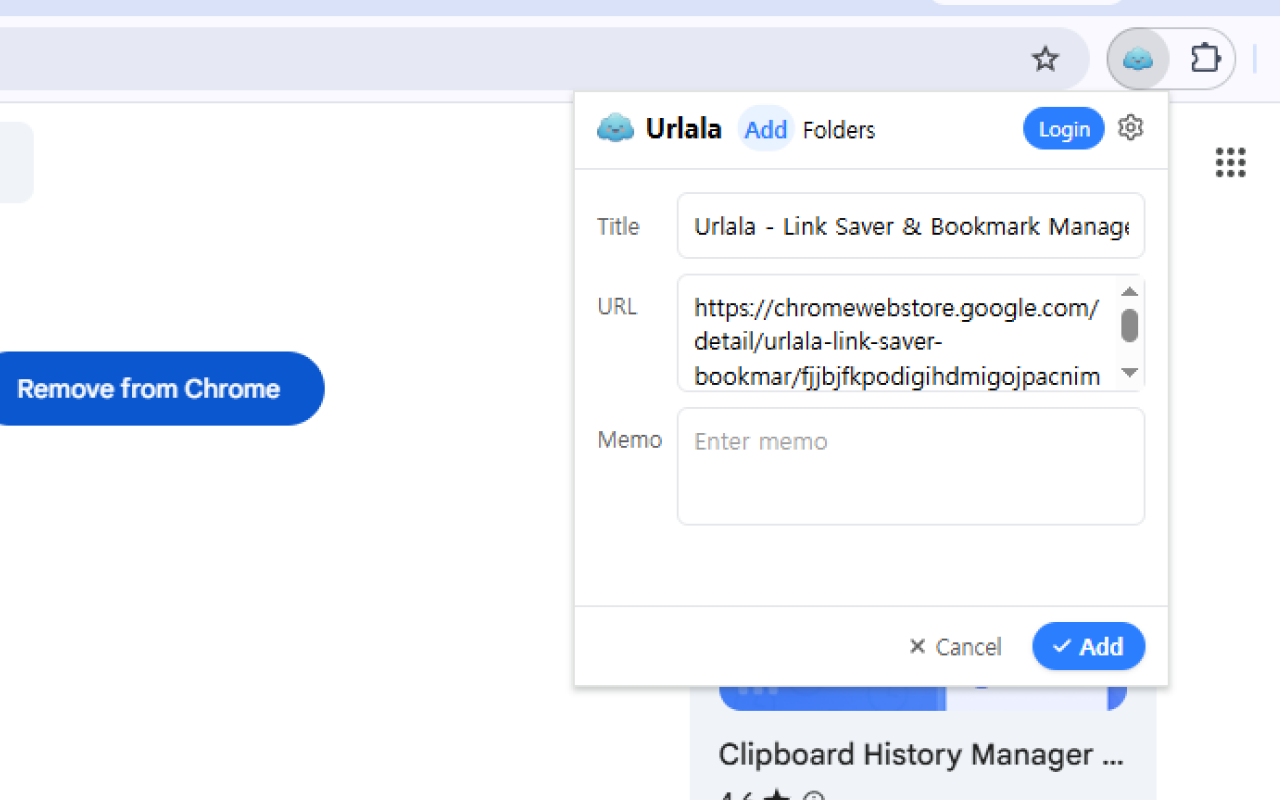
You can open Urlala directly on a desktop browser, but installing the Chrome extension makes it much faster to save the page you are currently viewing.
How to View a Link Saved on Your PC from Your Smartphone
- Open the page you want to save in Chrome on your computer.
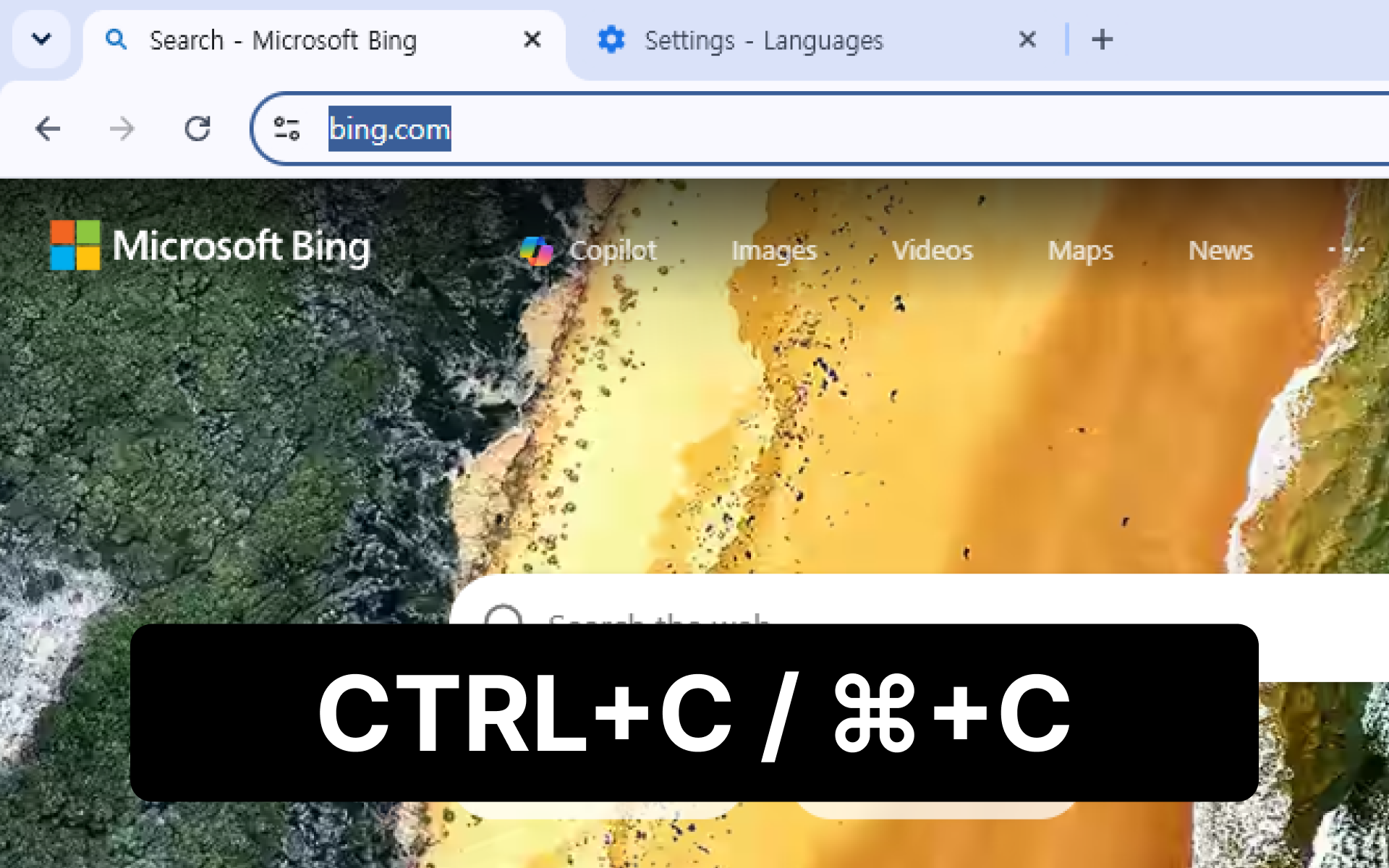
- Save the link with the Urlala Chrome extension.
- Open the Urlala mobile app while signed in to the same account, then find the saved link.
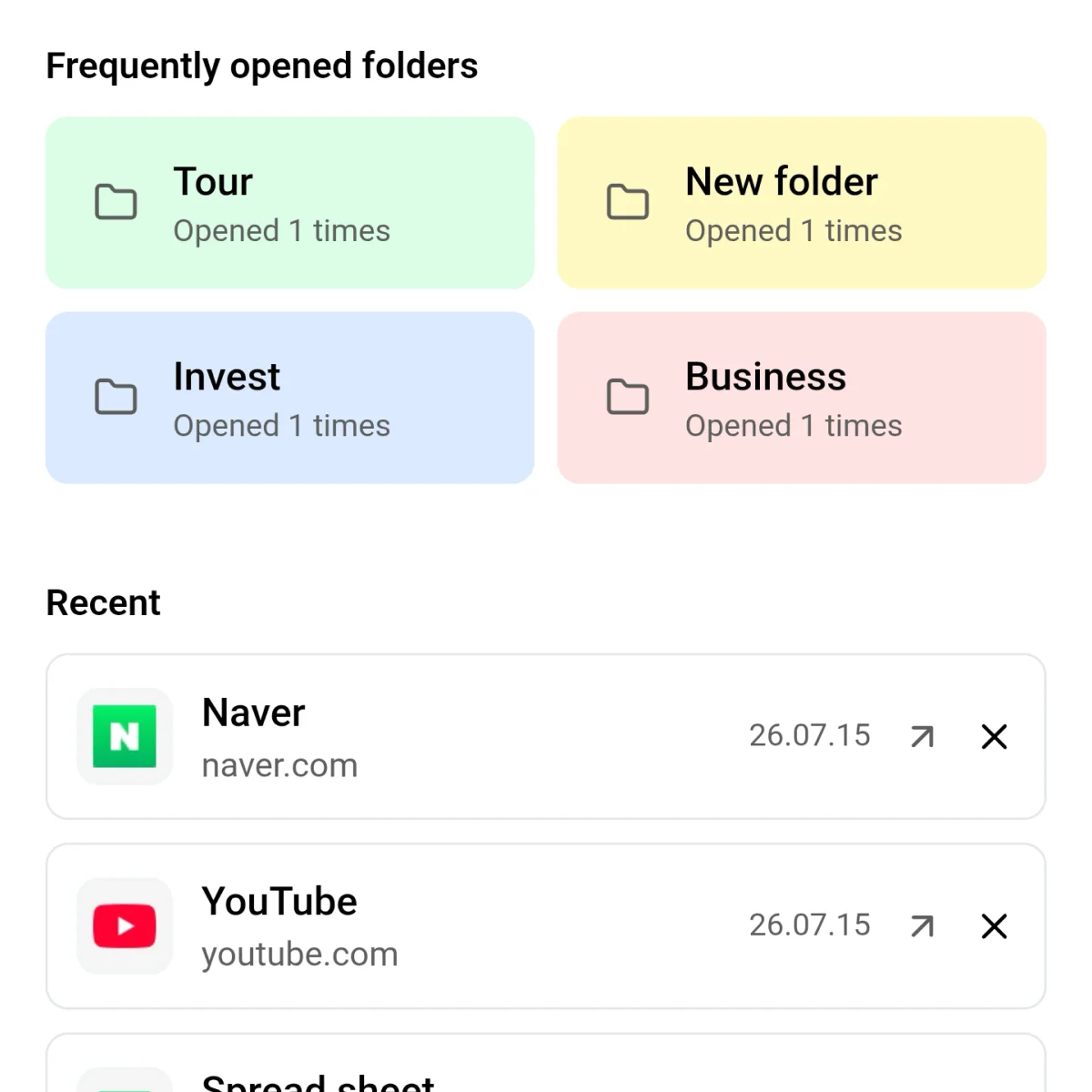
That is all it takes. There is no need to transfer a file or send the link to yourself in a message.
How to View a Link Saved on Your Smartphone from Your PC
- Copy the address of the page you want to save on your phone.
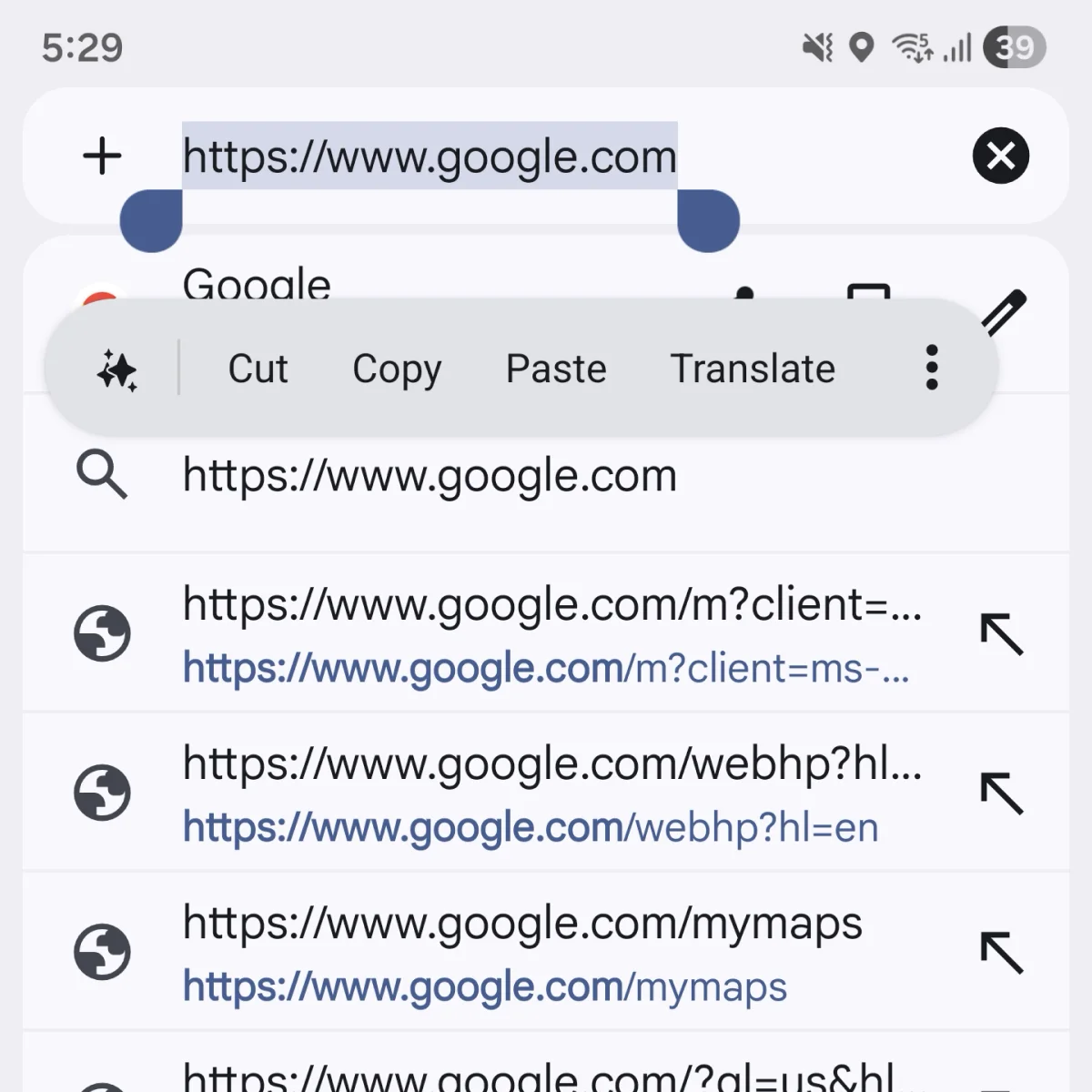
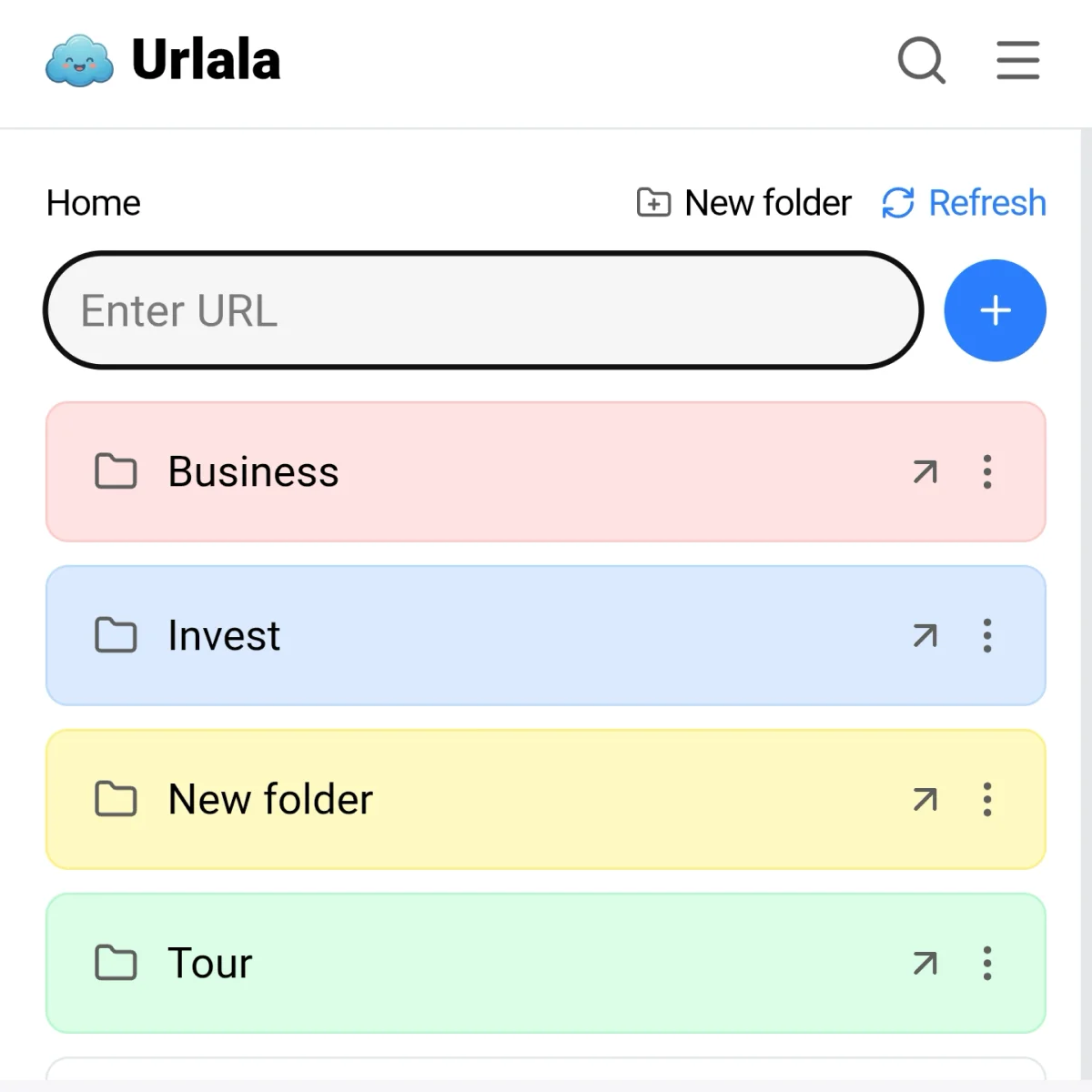
- Save the copied link to Urlala.
- Find the link in the Urlala Chrome extension or on the Urlala website from your PC.
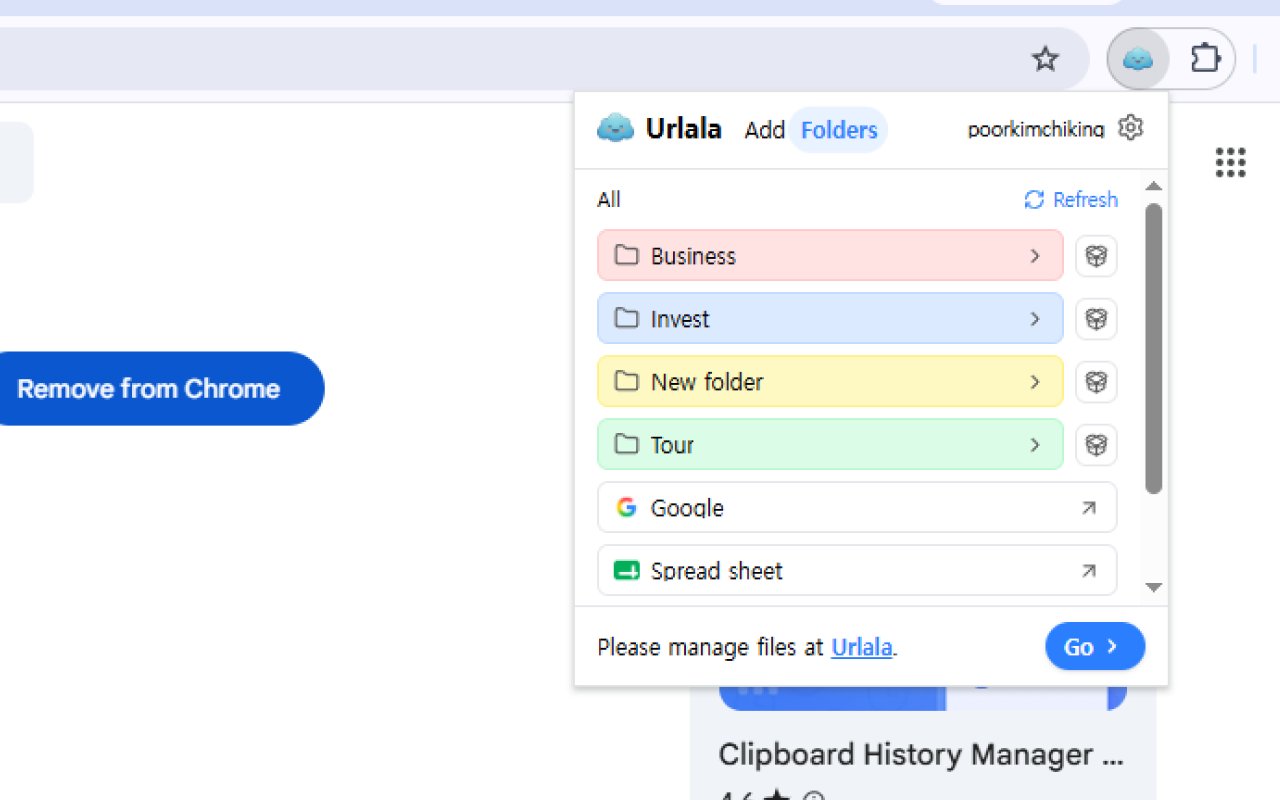
This workflow means you no longer need to message yourself every useful resource or article you discover on mobile. Save it quickly on your smartphone, then organize or reopen it comfortably from your desktop.
If a newly added link or folder does not appear on another device, select Refresh.
If bookmarks scattered across different browsers have become difficult to manage, try Urlala to keep your PC and mobile links together in one place.